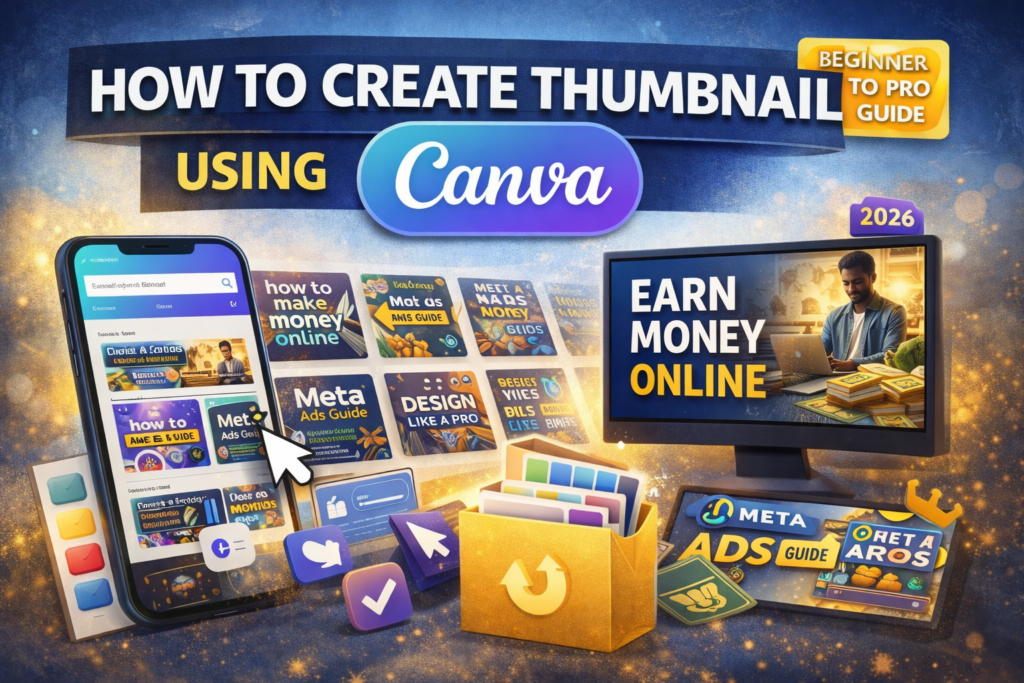
How to Create Thumbnail Using Canva (2026) – Beginner to Pro GuideBy shuvojitdolui8@gmail.com / April 20, 2026 In the Digital World, your content is judged before it is consumed.A powerful Thumbnail can stop the scroll, attract attention, and drive clicks. I’ll teach you how to create professional thumbnails using Canva—step-by-step by DIGITAL GULI Why Thumbnail is Important? First impression of your content Increases click-through rate (CTR) Builds brand identity Makes your content look professional 👉 No thumbnail = low clicks 🧰 What is Canva? Canva is a simple and powerful design tool that allows anyone to create thumbnails, posters, social media graphics, and more—without design skills. 🚀 Step-by-Step: Create Thumbnail in Canva 🥇 Step 1: Open Canva Go to Canva Search: “YouTube Thumbnail” Choose size: 1280 × 720 px 🥈 Step 2: Choose Template Select a clean template Avoid too many elements Keep it simple 🥉 Step 3: Add Text Use bold headline Keep text short (3–5 words) 🧑💻 Step 4: Add Image / Background Use relevant image Or gradient background 🎨 Step 5: Use Colors Smartly 2–3 colors max High contrast (dark + light) 🔤 Step 6: Font Selection Bold font for headline Clean font for subtext ⚙️ Step 7: Final Adjustments Align everything properly Add shadow/glow on text Keep spacing clean 📥 Step 8: Download Format: PNG High quality Use for YouTube / Blog 💡 Pro Tips Face thumbnails → higher CTR Big bold text → better visibility Less clutter → more premium feel 🚫 Common Mistakes Too much text Low contrast Random colors Poor alignment 🔥 Final Thought A thumbnail is not design—it’s a click magnet. Simple + Clear + Bold = High CTR 📞If you want to learn design practically: 👉 Follow Digital Guli